I would like to add or change some of the main navigation links to include an about post and a link to my website or another journal, but I can't figure out how to do it?
*********
#header .module-wrapper {display: none;} to your custom CSS to remove it from the document flow entirely as a quick fix. There may also be cases of things targeting #header .inner that need to be changed to #header > .inner so they don't hit the nested module .inner div as well.UPDATE: better way of doing this in the comments!
Hello all!
I do pretty things to my paragraphs, so I hand-code up my HTML in the editor rather than using rich text, putting P tags round my paragraphs. However, DW will still automatically add BR tags between them - making the gaps between my paragraphs HUGE and unsightly
The fix for this sets the height of BR as nothing - making the reading experience far more sightly. Put it in your Customise CSS section.
.entry-content br {
display: block;
margin: 0 0;
}


download the Tabular Indent raw code here

Go to Advanced Customization.
Click on Your Layers
Under "Create top-level layer", select "Layout" for Type and "Core 1" for Core Version. Hit create.
You'll be taken back to your layers page. You should see a layer titled "Livejournal S2 Core V1". Click edit. Paste the code and click save & compile.
If you want to fix your reading page to show the usernames, follow the tutorial listed on this page.
Now you need to use the layout. Go to Customize Journal Style page. Click on "Your Custom Layers" and apply your new theme
To edit the theme colors and fonts further, click "Customize".
download the Disjointed raw code here

Go to Advanced Customization.
Click on Your Layers
Under "Create top-level layer", select "Layout" for Type and "Core 1" for Core Version. Hit create.
You'll be taken back to your layers page. You should see a layer titled "Livejournal S2 Core V1". Click edit. Paste the code and click save & compile.
If you want to fix your reading page to show the usernames, follow the tutorial listed on this page.
Now you need to use the layout. Go to Customize Journal Style page. Click on "Your Custom Layers" and apply your new theme
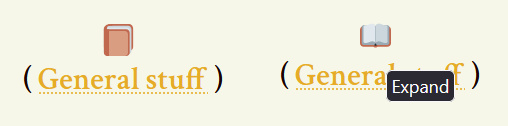
To edit the theme colors and fonts further, click "Customize".I made a little open-and-shut book for journal cuts - the book opens on hover, stays open when the cut is open, then closes on hover and if you click it and the cut is closed it's shut. The cut text and icon are both centered. Like this!
Based on code by
tropicsbear here, updated from the original here by
rise
You can download my book icons here - they're based on the open source twitter emoji [Closed Book / Open Book]. Please don't hotlink - download then re-upload to your own image hosting. What other before-and-after emoki could you use?
They are not pictures - they are in .svg format, a set of code instructions for displaying images. You can edit them in a dedicated svg editor, or in any program which edits text files (!). Use a .svg editor if you want to add symbols or change the design - or make your own pixel art - but if you just want to change the colour of the book, it's easy. Open the .svg source code in a text editor, then use find&replace to swap the color hex codes for the colours you want. Currently, the dark brown is #C1694F and the light brown is #D99E82.
Code under the cut!
( Read more... )This is a Contrast Checker, which will tell you whether the contrast between your text and background is strong enough to be accessible for all users.
The site also describes other best practices (for example, always marking out links visually for people who can't see colour distinctions, or considering how your site will be experienced by screen readers)
I also found this checklist helpful - it's aimed at serious web-designers, but i've found tests like 'what does your site look like on desktop zoom' invaluable for improving my code projects